
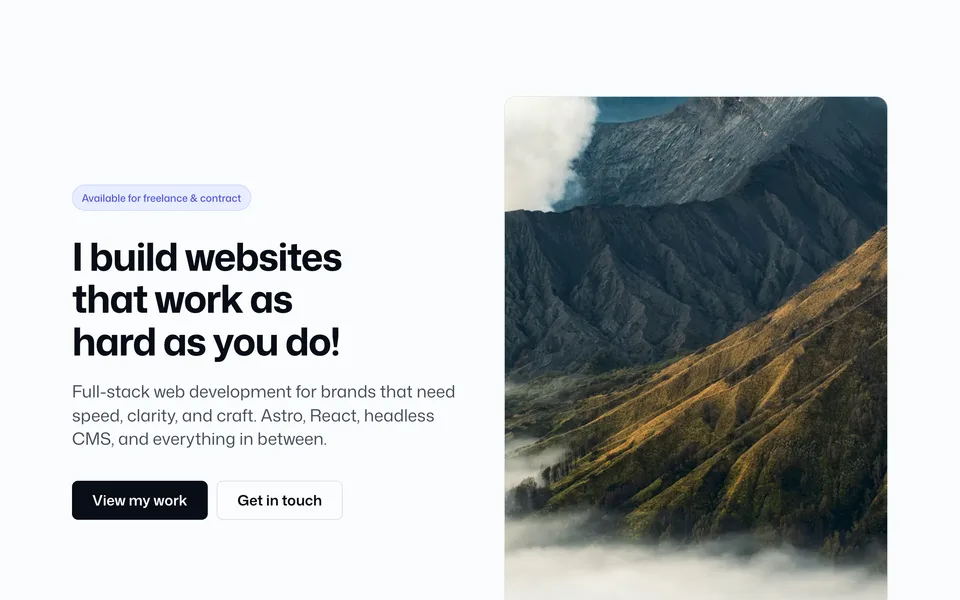
BaseLayer themes are production-ready Astro marketing sites you can buy, customize, and deploy. Each theme is a complete project with pages, blocks, config, and docs — not a loose set of components.
Browse the catalog on Themes.
What’s in a theme
Every theme follows the same layout so docs and customization stay familiar:
| Area | Path | What you get |
|---|---|---|
| Pages | src/pages/ |
Routes composed from blocks (home, about, work, blog, contact, …) |
| Blocks | src/blocks/ |
Full-width sections (hero, services, FAQ, CTA, …) |
| Components | src/components/ |
Shared UI used inside blocks (buttons, text, layout) |
| Config | src/config/ |
Site identity, block copy, banners, forms, SEO |
| Styles | src/styles/ |
Design tokens (theme.css) and base styles |
| Content | src/content/ or CMS |
Blog posts, projects, and other collections (depends on variant) |
You change branding and copy in config and content. You rearrange or swap blocks on pages. Deeper UI changes go through components and tokens.
Theme variants
Themes ship in one of two content setups. Blocks and page structure stay the same — only where content lives changes.
Plain Astro
| Content | Markdown / content collections under src/content/, plus copy in blocks.ts |
| Best for | Marketing sites, portfolios, and launches that don’t need a hosted CMS |
| Editing | Edit files in the repo (or your editor of choice) and redeploy |
Astro + Sanity
| Content | Sanity Studio + GROQ queries; pages pass the same props into blocks |
| Best for | Sites where a client or team updates content without touching code |
| Editing | Content in Sanity; theme code stays focused on layout and design |
A theme listing on Themes notes which variant(s) are available. Some products include both; others are plain Astro only.
What to expect when you buy
- A full Astro project you can run locally (
npm install/npm run dev) - Documented site config, components, and blocks
- SEO helpers, forms wiring, and deploy guidance in the docs
- A clear page set and block list on the theme’s product page (stats, screenshots, tech stack)
Install and first-run steps: Get started.
Finding a theme
- Open Themes
- Open a theme for demos, page list, included blocks, and pricing
- Choose the plain or Sanity option when the product offers both
- Follow that theme’s download / license instructions after purchase
Questions about licensing or which variant fits your project: Contact.